Think about how you want the final pizza peel to look and feel. Do you want a circular or square area? How long should the handle be? Will the final product hang directly from a hole in the handle or will something like a silicone loop be added? How thin or thick will the front taper be?
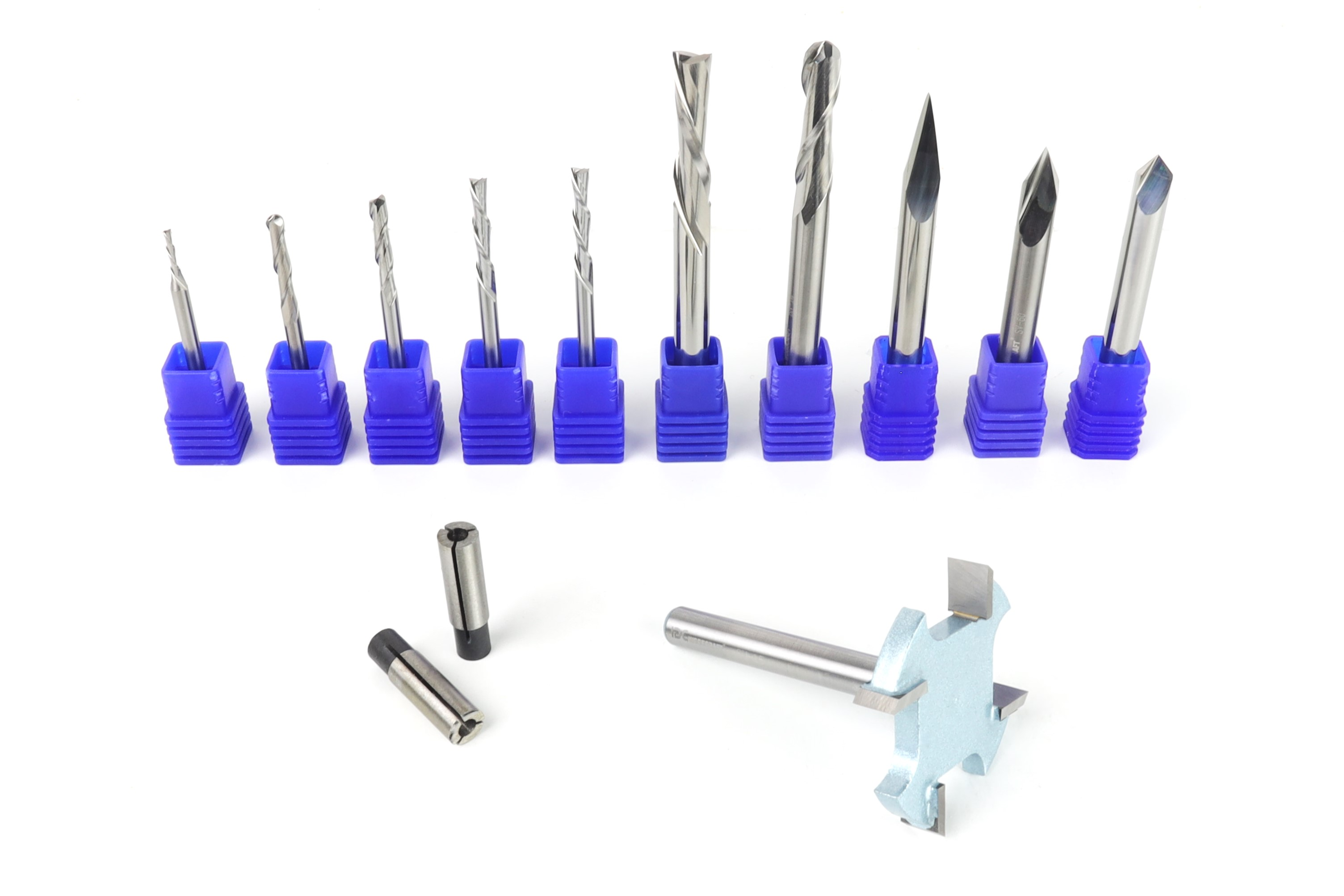
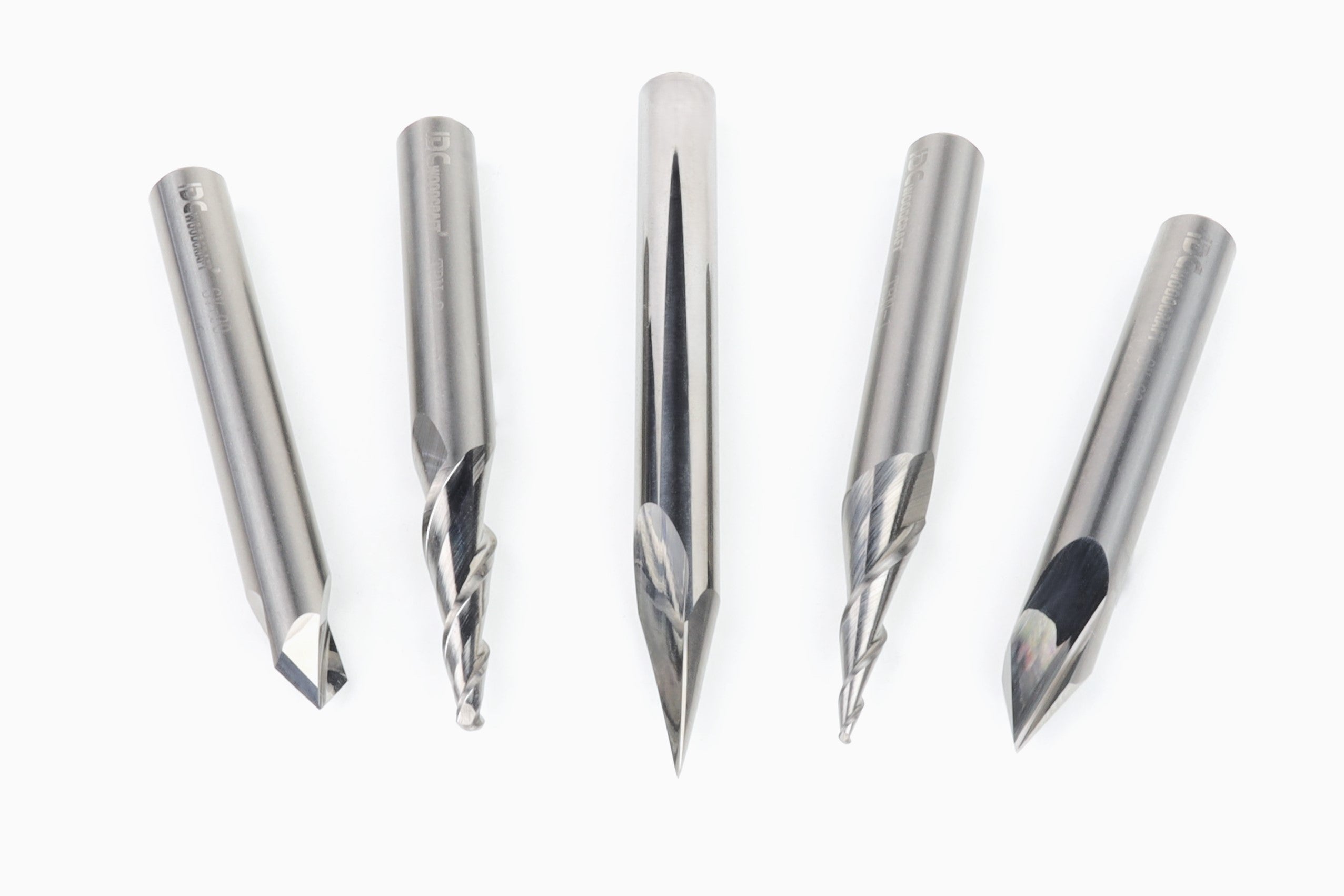
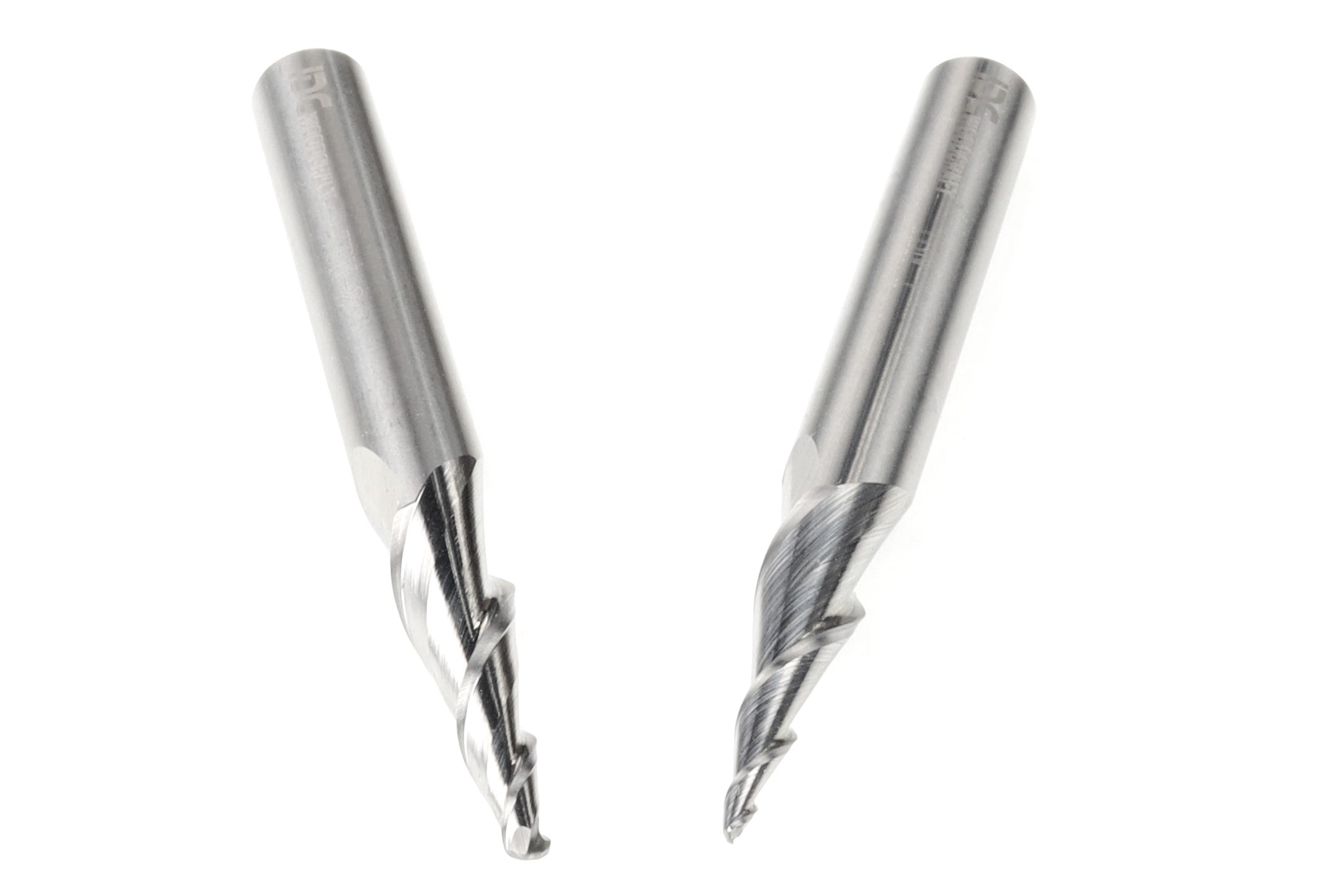
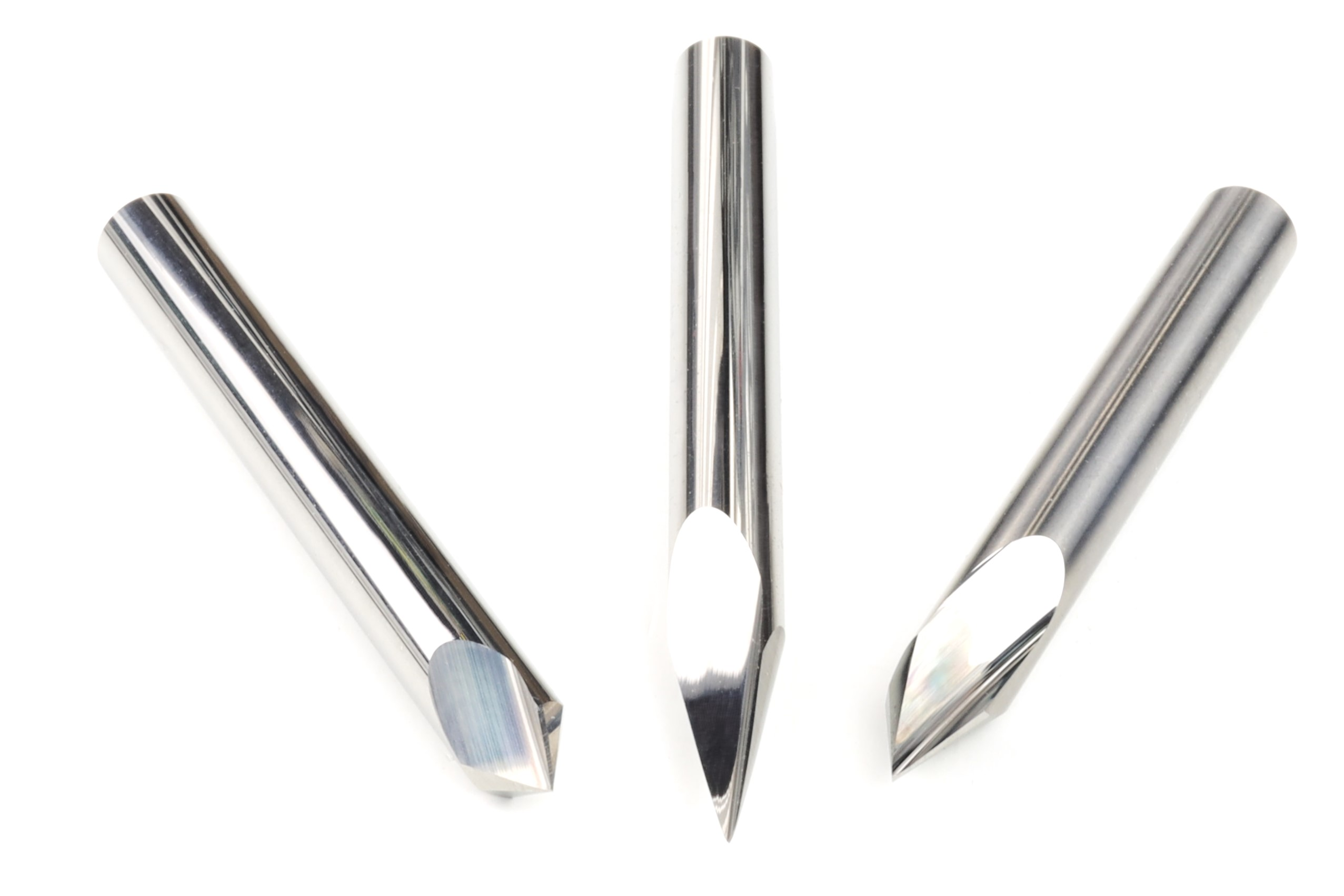
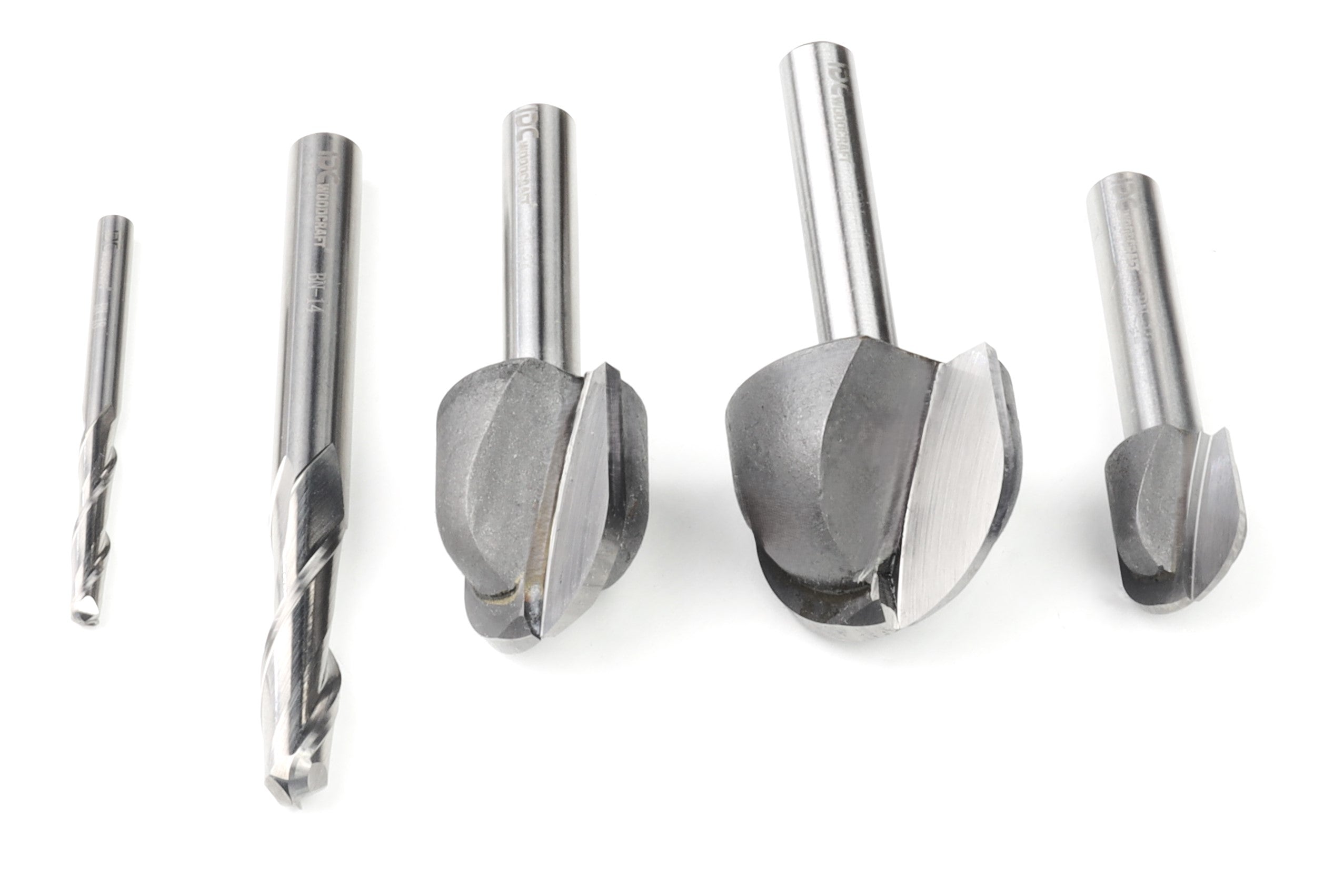
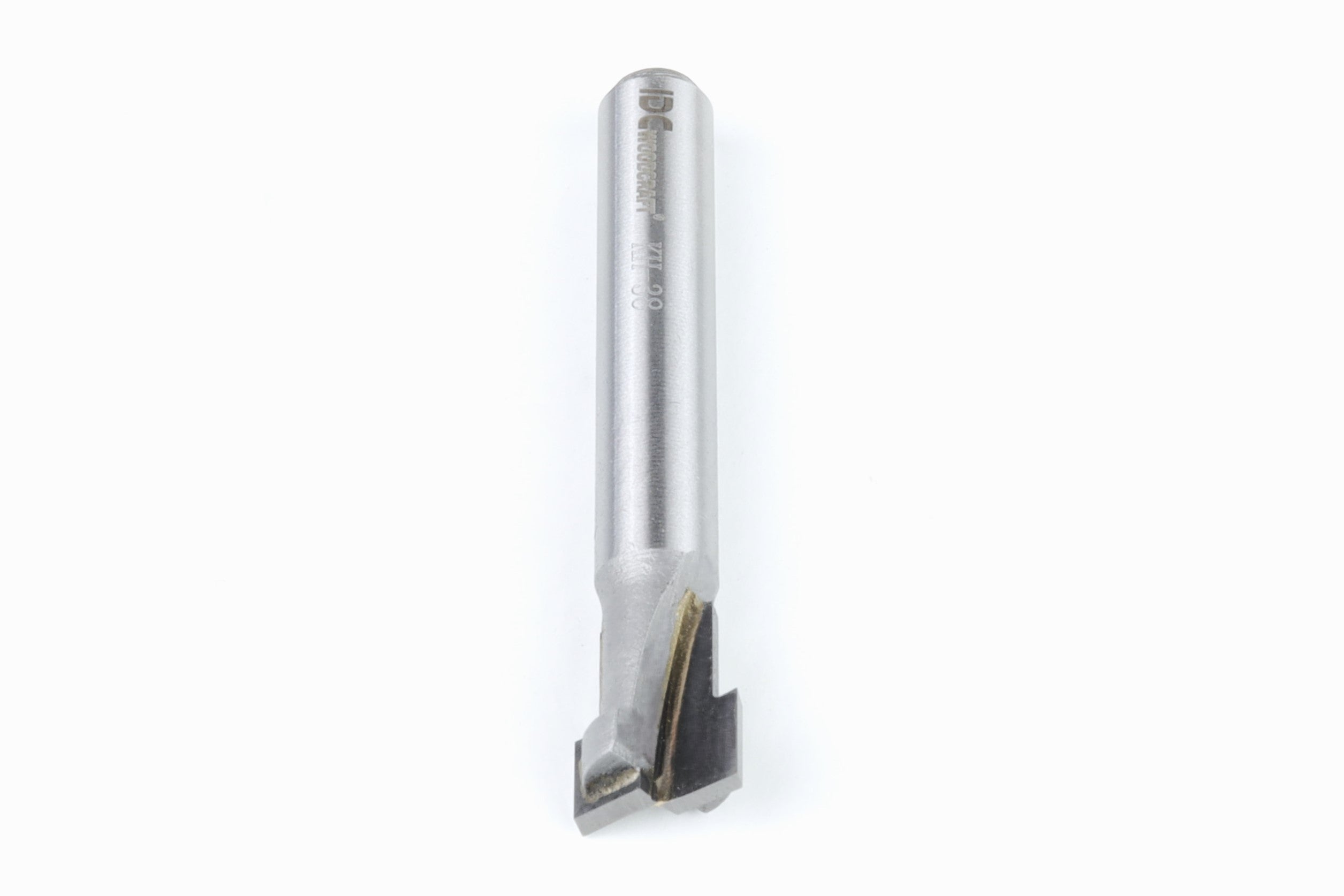
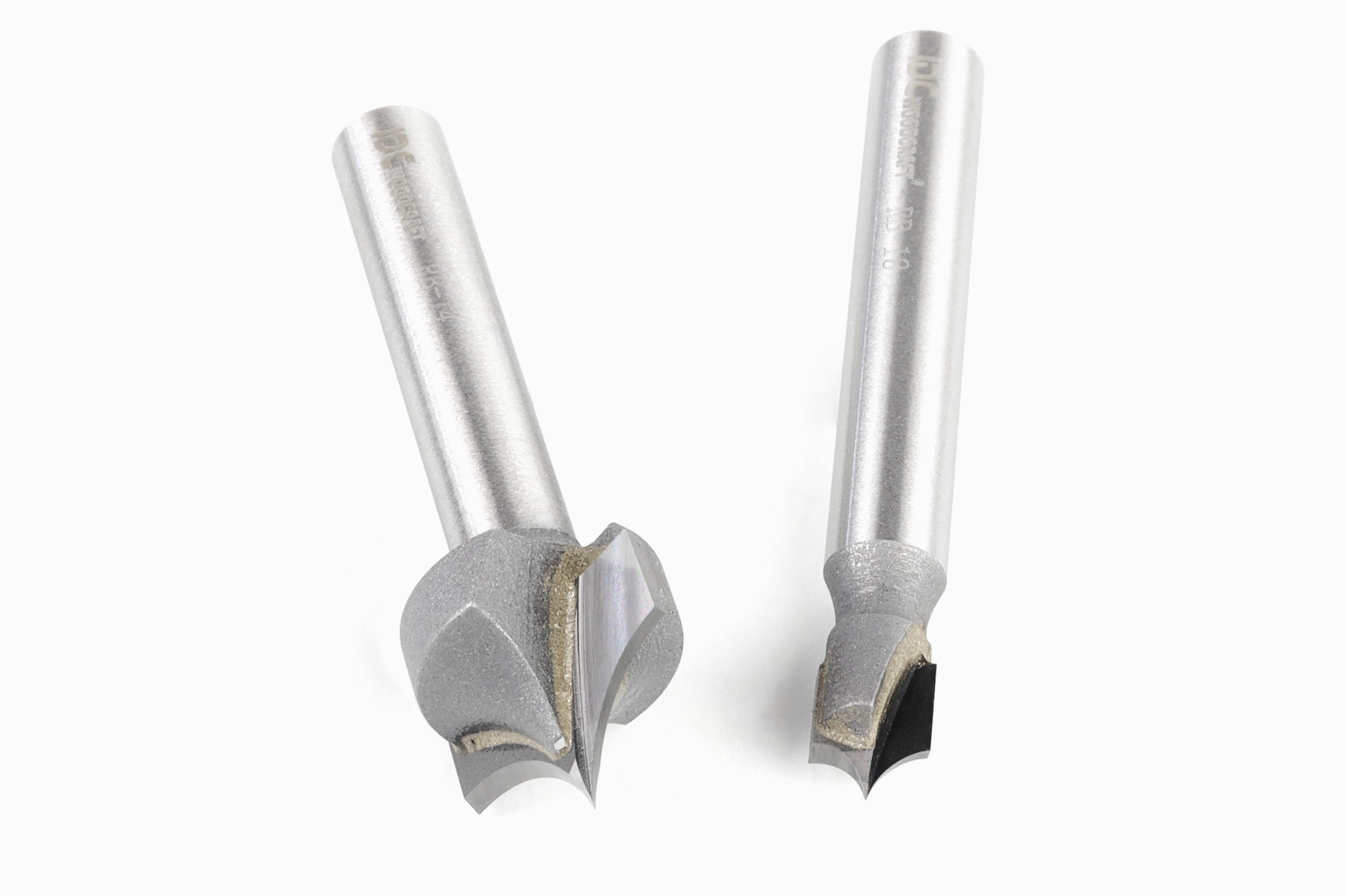
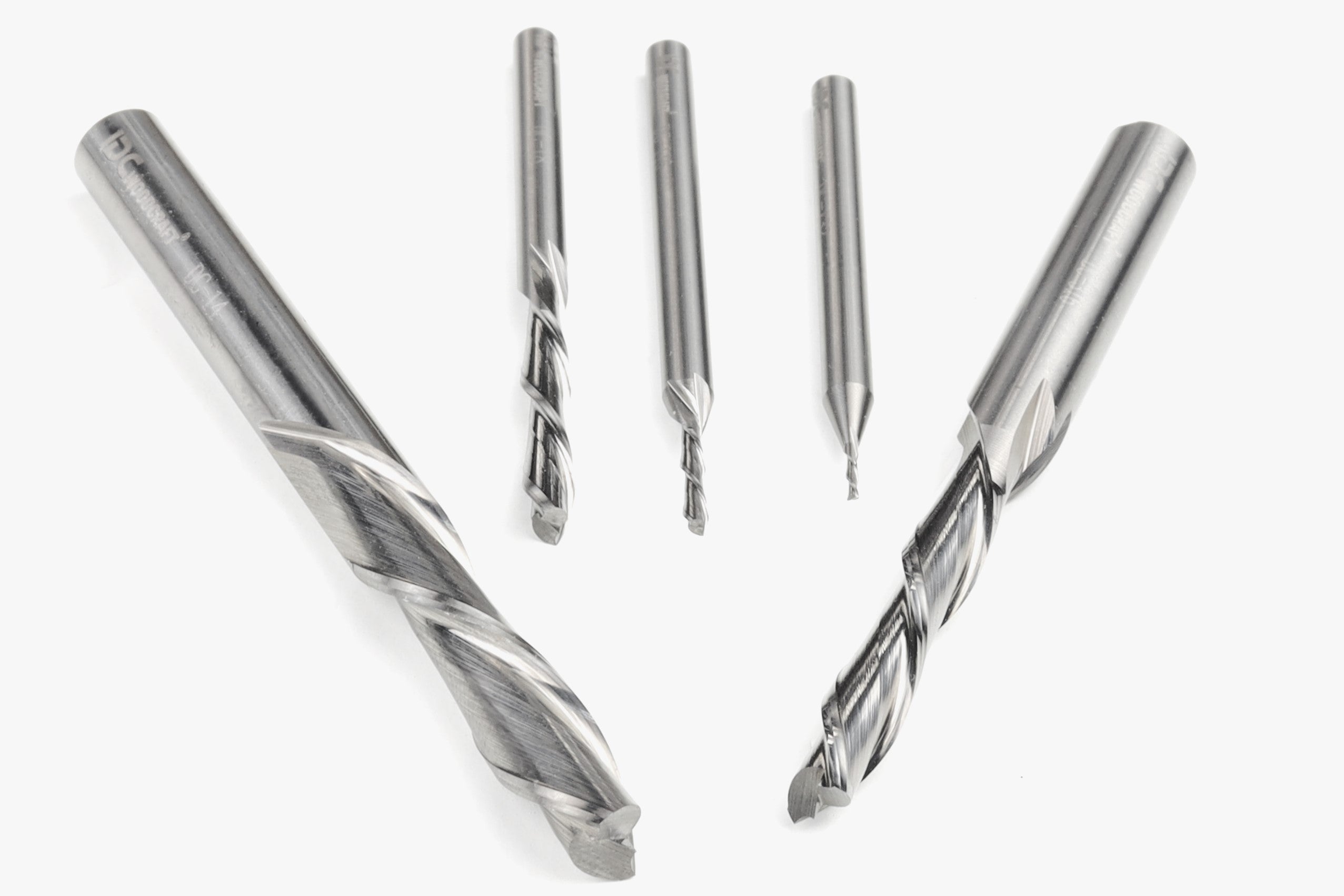
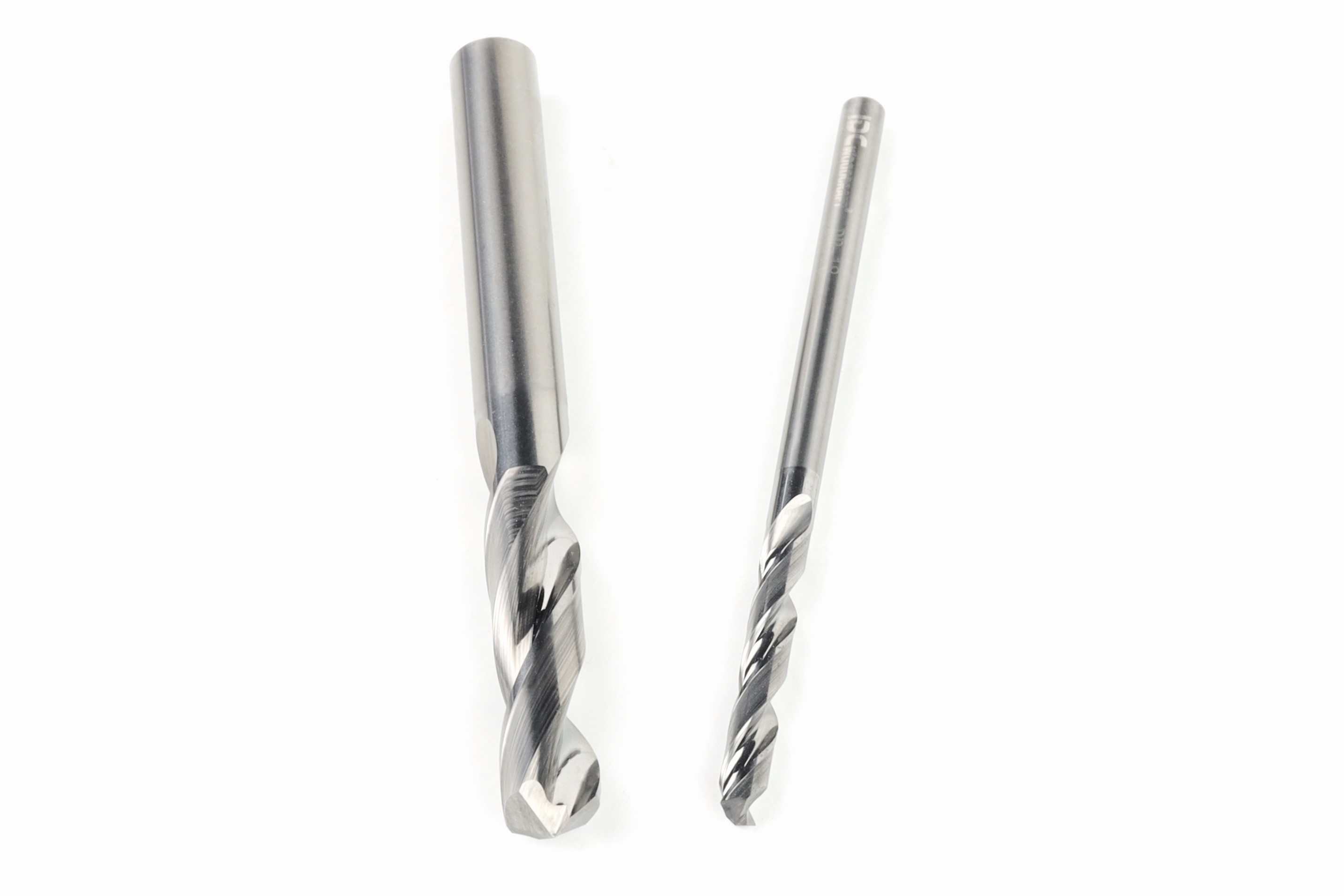
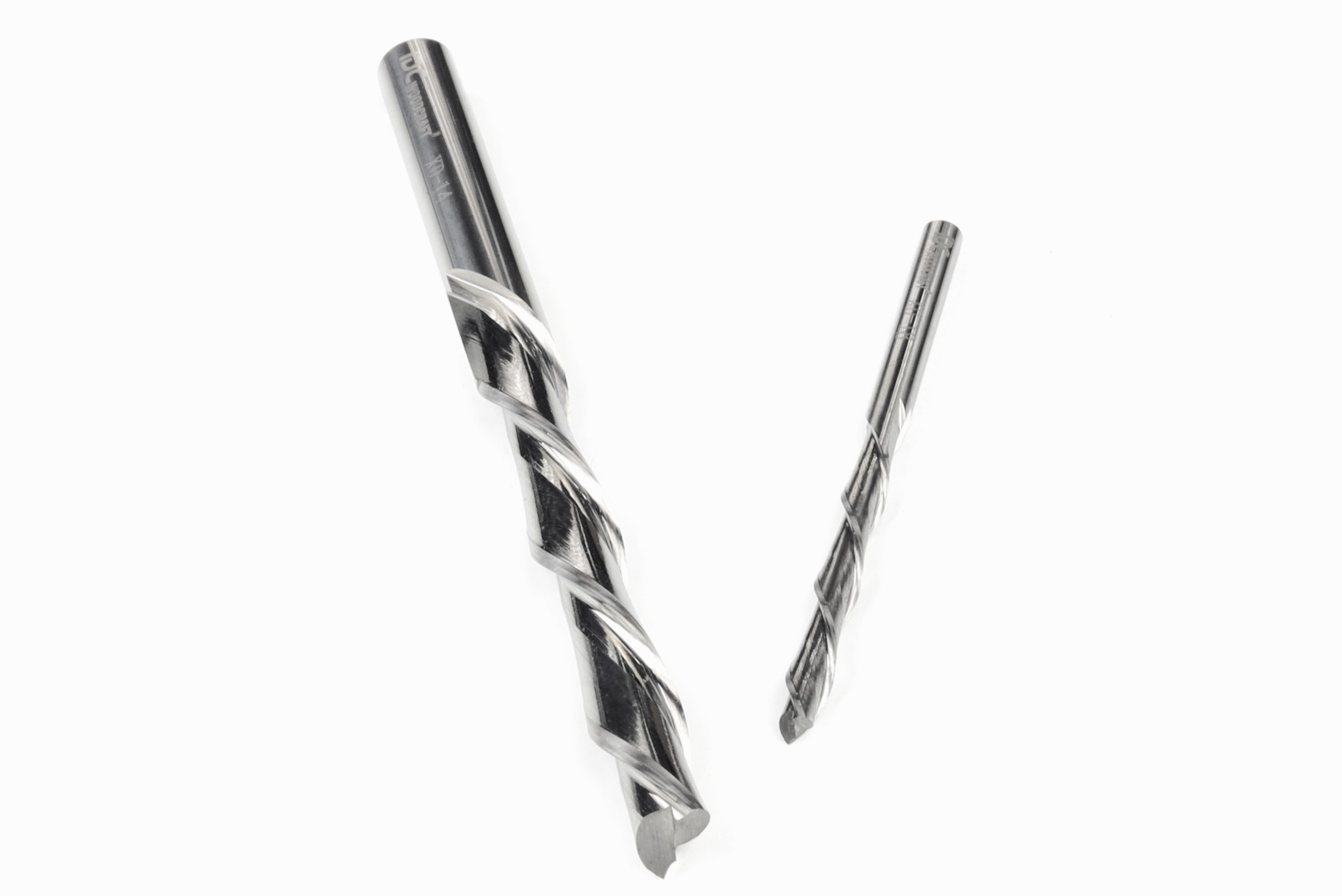
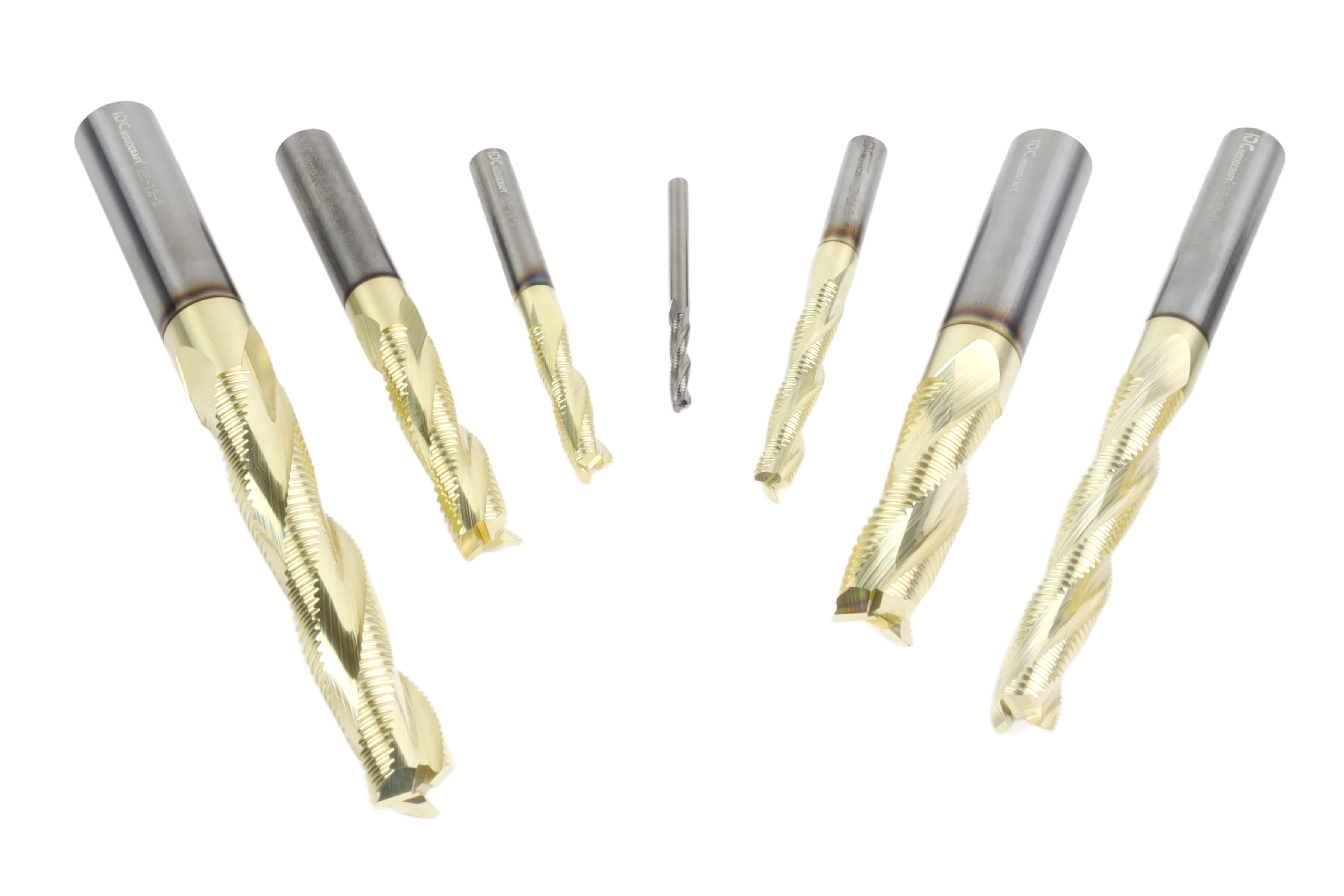
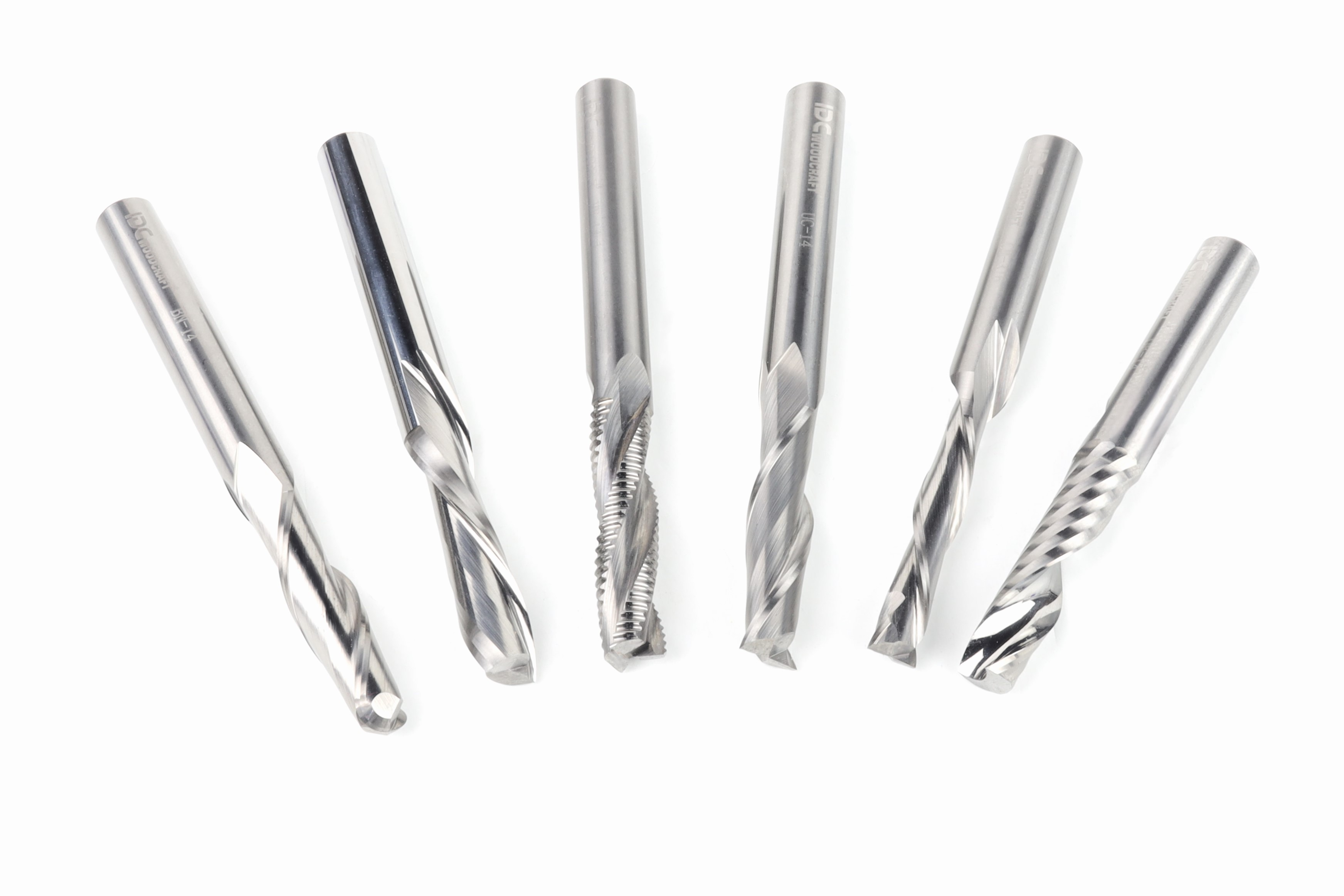
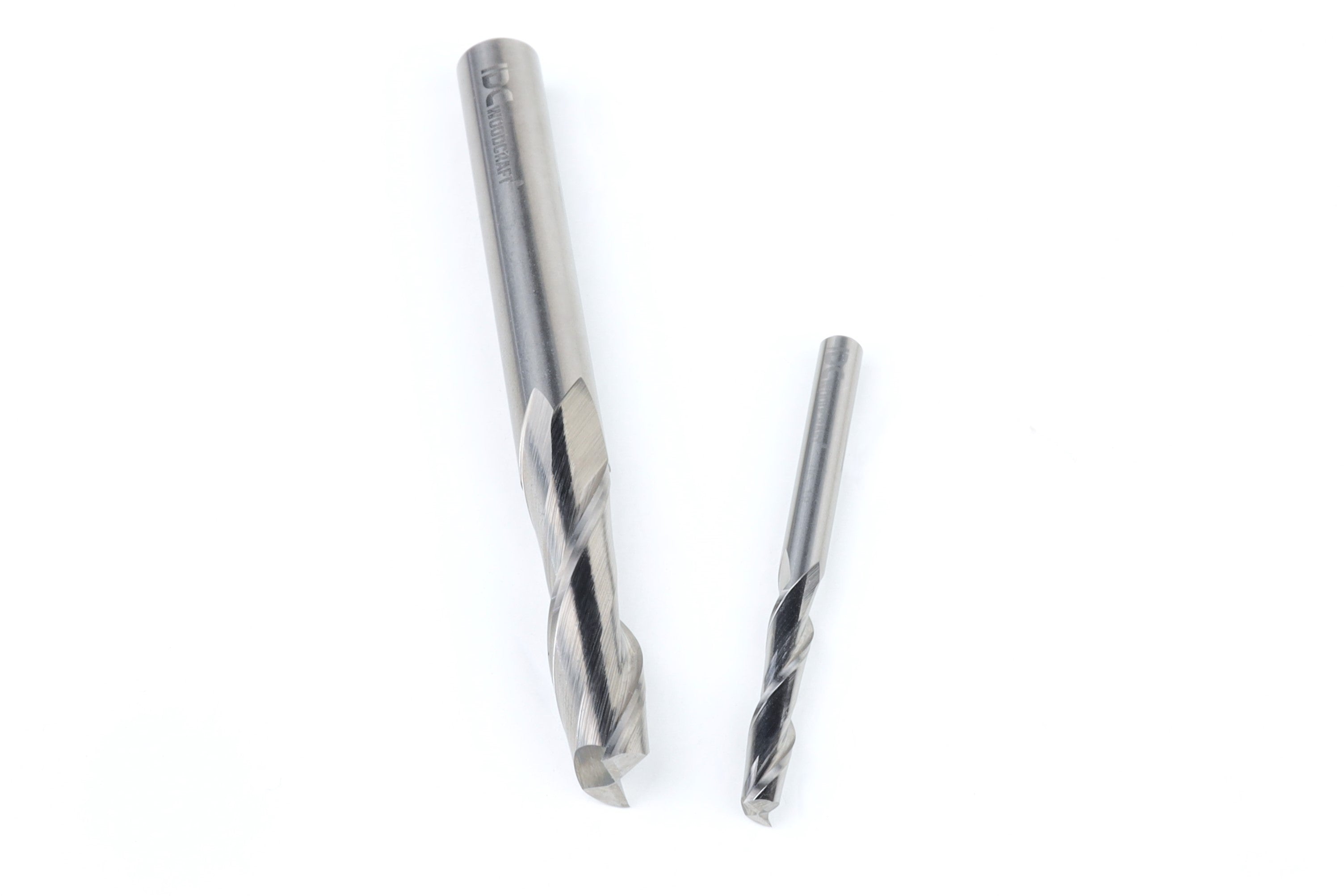
If thick pizzas are popular where you live, you can get away with a shorter taper that is less likely to chip or break. But customers who eat thin pizzas want a longer taper that lets the peel get under those thin crusts. The steepness of the taper will also depend on what router bit you use, which we’ll discuss more in steps 13-16.
Step 5. Build Out the Core Basic Shape
We’re going to go back and nail the details, so just do the basic shape for now. Draw two rectangles. Obviously, the main rectangle needs to be large enough for the largest pizzas customers might use it on. For most home chefs working with homemade or frozen pizzas, that’s 13 inches, but the largest of the common storebought pizzas are 20 inches. For our example, we’re going to use essentially all of the material and set width to 15 inches and height to 23 inches, trimming a ½ inch from each side of the material.
Remember to set the anchor point to zero. And then program in the sizes with the draw rectangle tool. For our main area, we’re doing a width of 15 and then a length of 17 inches, giving us a roughly square area for the pizza to sit on, plus a little room on the front for a 2-inch taper.
Then add a second rectangle for the handle. For our handle, we went with 7 inches. For most home chefs, they need a handle at least 5 inches long. (If you want to sell to some pizza shops with those large brick ovens, you’ll need to create a handle that will fit snugly into a rod. Your CNC router likely can’t create a handle multiple feet long, and you would waste a lot of material cutting it out from the large board necessary to make it from one piece.)
Once you have both rectangles on the screen, you can use guidelines to ensure you place them properly in the next step. Now is a good time to do a save, though.
Step 6. Place the Handle and Pizza Peel
Place guides to define where the handle will go and where the taper will start and end. You can place guides by hand in most computer-aided manufacturing software, but if you’re comfortable with grids and measurements, the easier way is to create new guidelines from the menu.
Right click and select your software’s option to create a new guide line and place it running up and down in the center of the project. Make sure the “Snap To” option is selected, and then double click the larger rectangle where the pizza will sit. Then move it up to almost the top of the project while keeping it centered left-to-right.
Then shift the smaller rectangle to the bottom of the pizza rectangle so the handle extends from the pizza rectangle. Then, to turn the rectangles into one piece, use the software’s cut function, usually symbolized with a pair of scissors. Use those scissors to cut away the two lines separating the handle and the platform for the pizza.
Step 7. Creating the Taper Profile
The current design probably looks a little extreme and sharp, like something you could make with a circular saw. To soften the corners, we’re going to tell the software to taper them down. Use the polyline tool to do this, drawing a polyline from the edge of the handle to a few inches up the side. Then draw another, symmetrical line on the other side.
Then cut the two corners away with the scissors. Finally, use the fillet command, usually under a menu title like “edit objects” to apply a normal fillet to each side. We used a 4-inch radius on ours for the upper corners, a 2-inch radius on the upper part of the handles, and a 1-inch fillet on the bottom corners.
Step 8. Create the Tapers for the Front
A pizza peel’s magic lies in its thin, tapered front edge. We’ll create this with a separate taper layer in the design file. Add a circle at the platform’s top edge, then offset it to form arcs that define the taper’s curve. Remember to name your layers with descriptive titles, like “Peel Shape” for the main file and “Taper Layer” for the taper path.
We also recommend picking a separate color for the second layer.
We’ll continue to define the taper in the following steps, so just get the circle on there for now.
Step 9. Create New Parallel Guides
Add a new guideline with whatever distance you want your taper to go. For our 2-inch taper, we added a new guideline, you guessed it, 2 inches below. The easiest way to do this, since we have a guide marking the end of the pizza peel, is to add a new guide “Relative to guide” 2 inches below number 1.
Step 10. Rounded Taper Area
Move your circle to the center of the peel with the forward edge on the new guide. Then use “Offset Vectors” to add a larger circle that defines the length of the taper at the center. Add an offset vector 2 inches outwards/right from the original circle. Then, with the new circle selected, do that again so that you have three circles with a 2-inch gap between each.
Then move the middle circle to the Pizza Peel layer, off of the taper layer.
Draw a horizontal line across the two red lines and then use the scissor tools to remove the bottom halves of both red circles and the horizontal line in the center of the project, leaving you with a taper layer that shows a rainbow shape.
Step 11. Finish Off the Shape of the Pizza Peel
When you return to the pizza peel layer, that middle circle we moved to it will now cut across the handle and sides of the pizza peel. Use the scissor tool to remove every part of the circle except the front arc and the small segment that cuts across the handle. Then use the select tool to select and delete the arc that cuts across the handle.
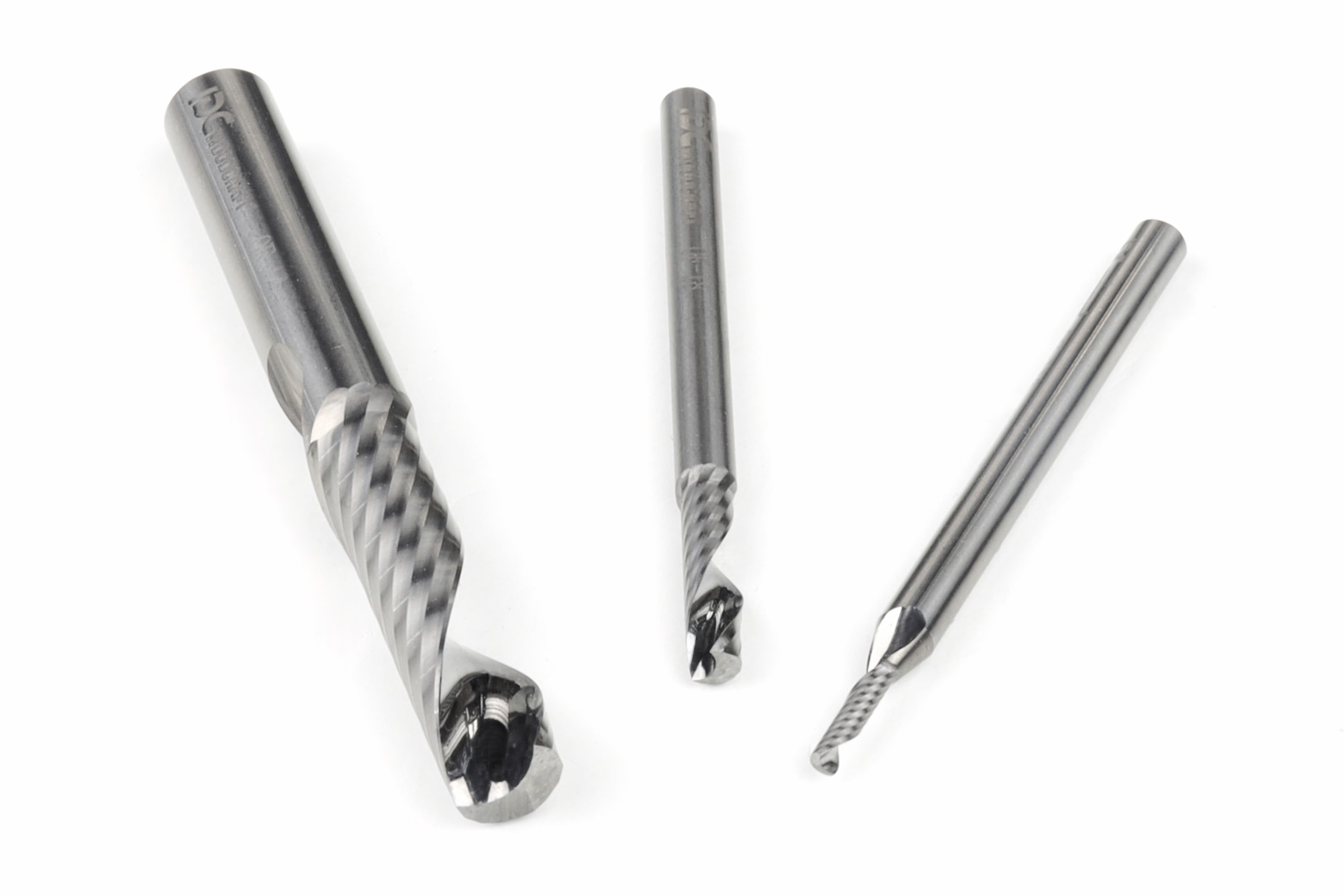
To add the hanging hole, use the circle command to add a hole that is 1/8 to ¼-inch larger than the spiral bit you are using.