


Free Shipping for CNC Bit orders over $160

Shop

Shop By Project

Shop By Type

Starter Sets

Starter Sets

Inlay

Inlay

3D Carving

3D Carving

Acrylic

Acrylic

Engraving

Engraving

Bowl And Tray

Bowl And Tray

Digital Files

Digital Files

Slotting

Slotting

Rounding

Rounding

V Grooving

V Grooving

Surfacing

Surfacing

Starter Sets

Starter Sets

Bit Bundles

Bit Bundles

Ball Nose

Ball Nose

Compression

Compression

Downcut

Downcut

Drills

Drills

Engraving

Engraving

Extended Cut

Extended Cut

Roughing

Roughing

Rounding

Rounding

Slotting

Slotting

Straight Cut

Straight Cut

Surfacing

Surfacing

Upcut

Upcut

V Grooving

V Grooving

Jenny Bits

Jenny Bits

Collets

Collets

Accessories

Accessories

CNC Machines

CNC Machines

Vacuum Tables

Vacuum Tables

Spindles

Spindles

Software

Software

Digital Files

Digital Files

Merch

Merch

Closeout

Closeout

CNC Resources

Database Downloads

About

Contact Us

Get A Gift Card

Shop

Shop By Project

Shop By Type

Starter Sets

Starter Sets

Inlay

Inlay

3D Carving

3D Carving

Acrylic

Acrylic

Engraving

Engraving

Bowl And Tray

Bowl And Tray

Digital Files

Digital Files

Slotting

Slotting

Rounding

Rounding

V Grooving

V Grooving

Surfacing

Surfacing

Starter Sets

Starter Sets

Bit Bundles

Bit Bundles

Ball Nose

Ball Nose

Compression

Compression

Downcut

Downcut

Drills

Drills

Engraving

Engraving

Extended Cut

Extended Cut

Roughing

Roughing

Rounding

Rounding

Slotting

Slotting

Straight Cut

Straight Cut

Surfacing

Surfacing

Upcut

Upcut

V Grooving

V Grooving

Jenny Bits

Jenny Bits

Collets

Collets

Accessories

Accessories

CNC Machines

CNC Machines

Vacuum Tables

Vacuum Tables

Spindles

Spindles

Software

Software

Digital Files

Digital Files

Merch

Merch

Closeout

Closeout

CNC Resources

Database Downloads

About

Contact Us

Get A Gift Card

Common CNC Router Mistakes and How to Fix Them


The Short Answer: Most CNC router problems come back to a handful of common causes. Those are setup, bit choice, feed rate and spindle speed, toolpaths, and maintenance. In many cases you can fix these issues with a simple adjustment or a fresh bit instead of a full rebuild.


CNC stands for computer numerical control, which means the machine follows the toolpath file exactly, mistakes included. That’s why CNC machine troubleshooting works best as a process of elimination. Start with the simple checks, like a loose clamp or the wrong bit in the collet, before you assume something on the machine is broken.


Setup Mistakes

Many setup mistakes are easy to avoid with a routine before each job. Our free CNC setup checklist, which you get when you join the CNC Insiders mailing list, walks through the setup steps covered below so nothing gets skipped. 

Skipping Tram and Surfacing

Tram is how square your router or spindle sits to the table. If it leans even slightly, a surfacing pass leaves ridges and your carve depths change across the board. Check the tram with a tram bar first, then flatten your spoilboard so every job starts on a level surface. Surfacing the spoilboard in shallow passes with a 1.5" surfacing bit takes care of the second part.

Weak Workholding

Tram is how square your router or spindle sits to the table. If it leans even slightly, a surfacing pass leaves ridges and your carve depths change across the board. Check the tram with a tram bar first, then flatten your spoilboard so every job starts on a level surface. Surfacing the spoilboard in shallow passes with a 1.5" surfacing bit takes care of the second part.

Setting Zero Wrong

Zero is the point your toolpaths measure from. If your Z-axis zero is off, cuts come out too deep or too shallow, and a bad X or Y-axis zero shifts the whole design. Every tool change needs a new zero unless your machine uses a tool changer with a tool length setter. A touch plate or the paper method for setting zero both work when done carefully.

Bit and Setting Mistakes

Using the Wrong Bit

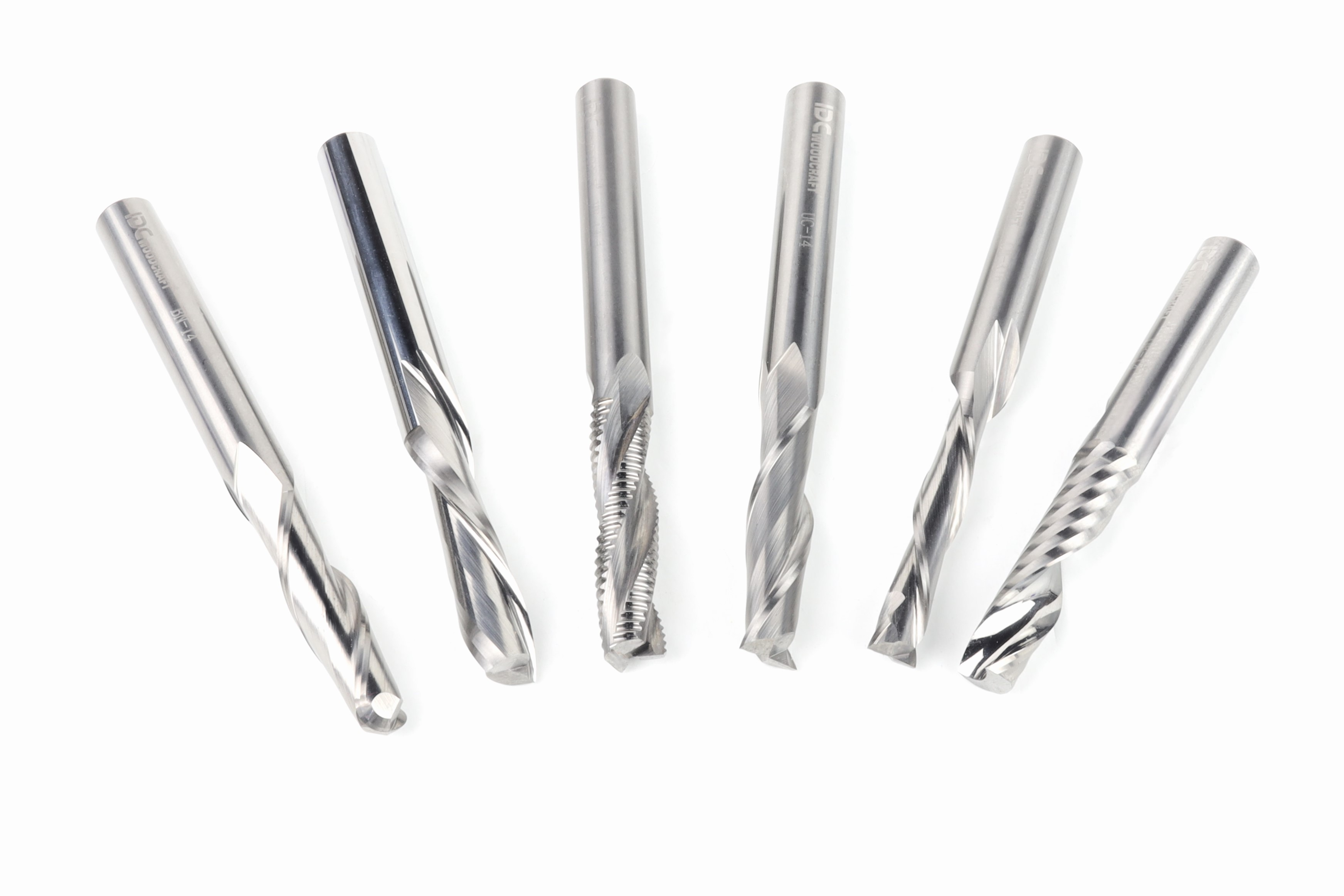
The right tool depends on the material and the cut. An upcut bit pulls chips up and can leave fuzz or tearout on the top edge, while a downcut bit pushes fibers down for a cleaner top surface. If your rough edges show up on the top face, switching to a downcut bit often helps. For plywood with clean edges on both faces, a compression bit is usually the better choice because it cuts down on the top and up on the bottom.

Feed Rate and Spindle Speed Out of Balance

Feed rate is how fast the bit moves through the material, and spindle speed is how fast it spins. Together they set your chip load, which is the thickness of the chip each cutting edge takes. If the bit spins too fast for the feed rate, it rubs instead of cuts, which can burn the wood and shorten tool life. If it moves too fast for the spindle speed, you may hear chatter or see excessive vibration. Getting your feeds and speeds close is mostly a matter of starting from known numbers, and the chipload calculator gives you a starting point for each bit. The IDC Woodcraft app keeps feeds and speeds with you at the machine, and has an editable checklist you can add custom steps to for each project. 

Runing a Dull Tool

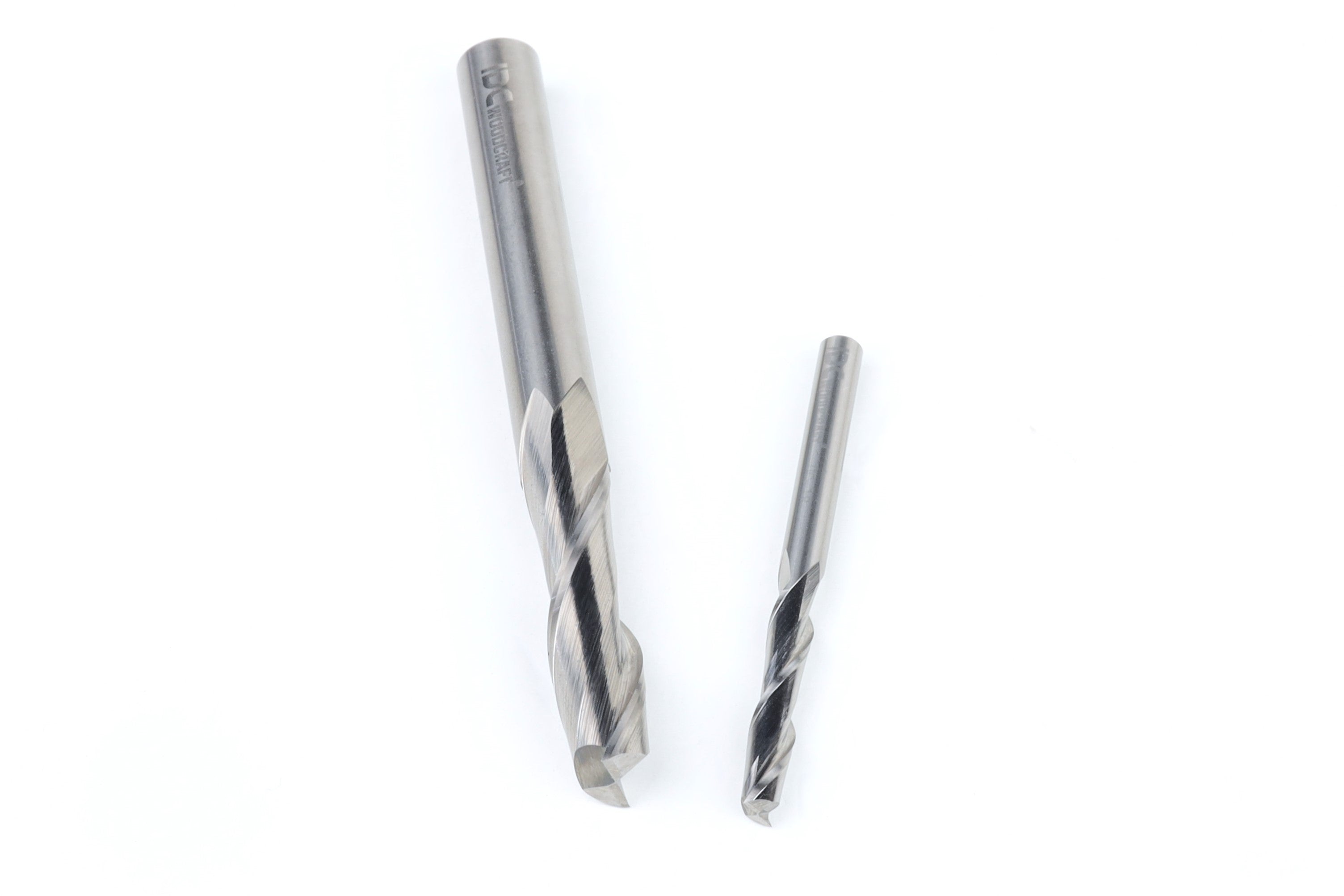
A dull tool tends to leave burn marks, fuzzy edges, and a louder cut than usual, even with good settings. When a carbide bit dulls, the usual fix is to replace it instead of sharpening it, since regrinding changes the cutting geometry and resharpening small 1/4" and 1/8" shank bits typically isn’t cost effective. You can make bits last longer between replacements by checking your chip load, since rubbing wears an edge faster than cutting does. 


IDC Pro Tip: On bigger jobs, clear most of the material with a roughing bit first. That takes the heaviest cutting off your finishing bits, so they stay sharp longer.

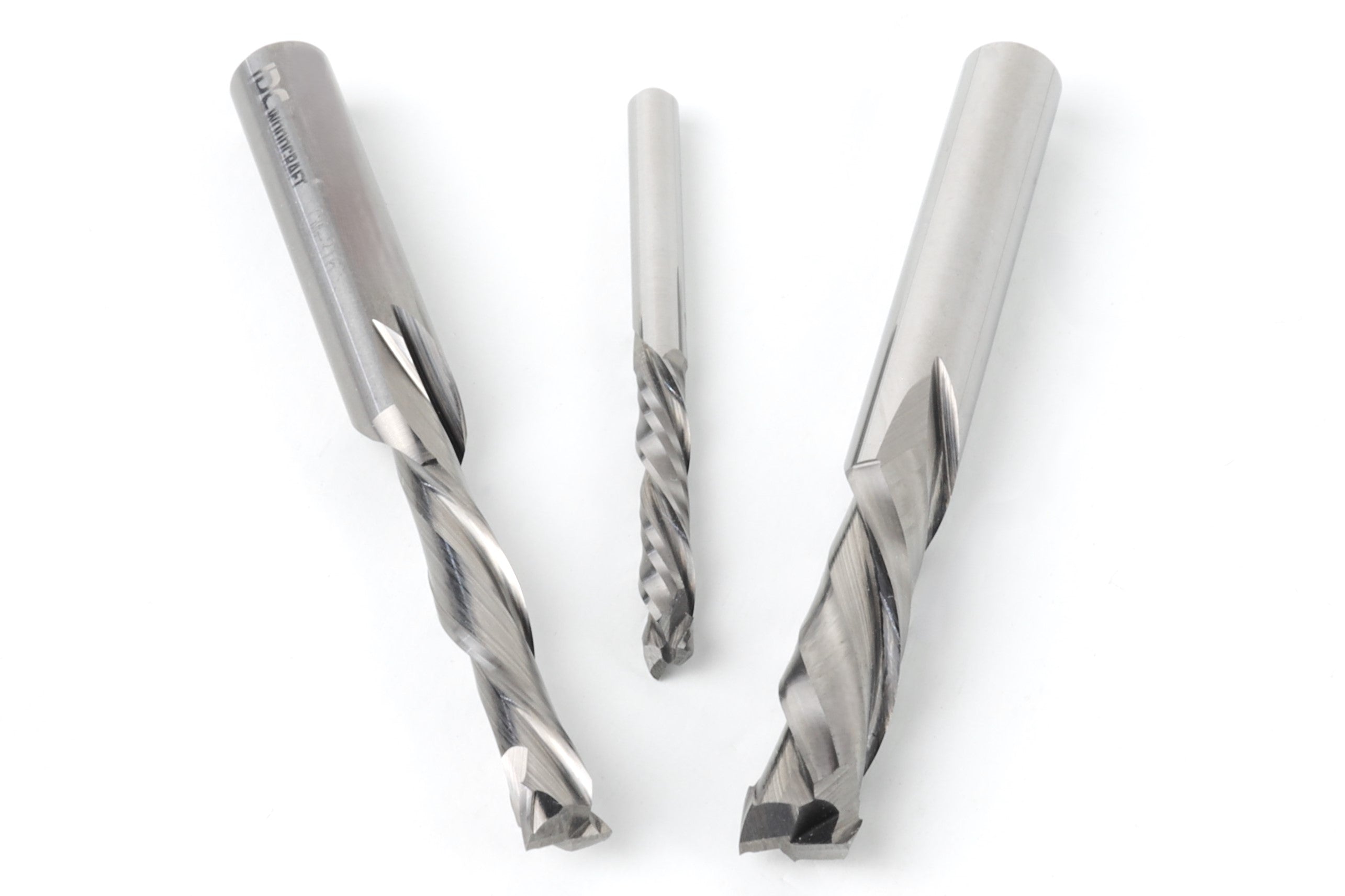
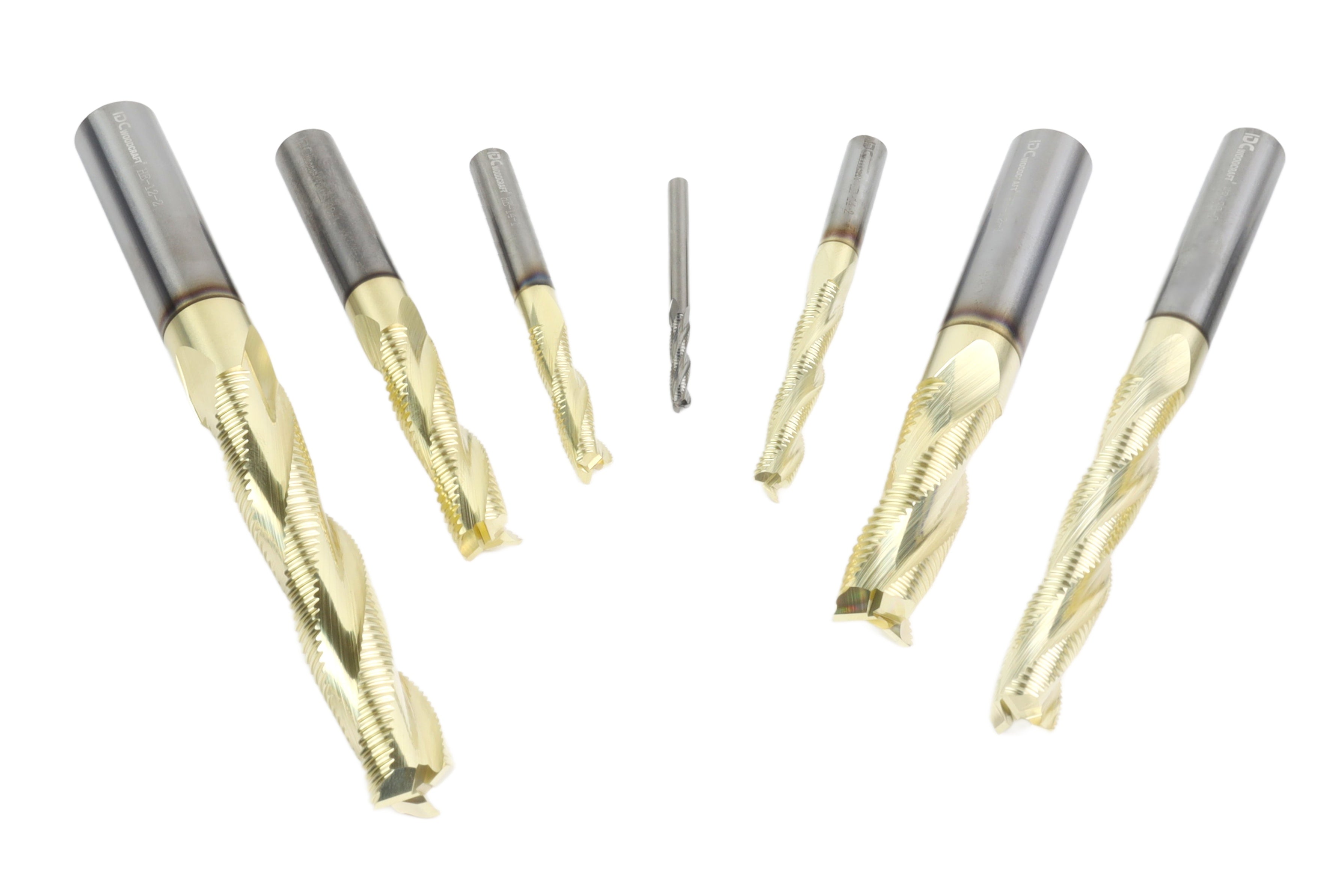
CNC ROUGHING BITS

Take the Heavy Cutting Off Your Finishing Bits

Remove the bulk of material with a roughing bit before your finishing passes. This helps reduce wear on your finishing bits so they stay sharp longer.

Shop Roughing Bits →

Collet and Tool Holder Problems

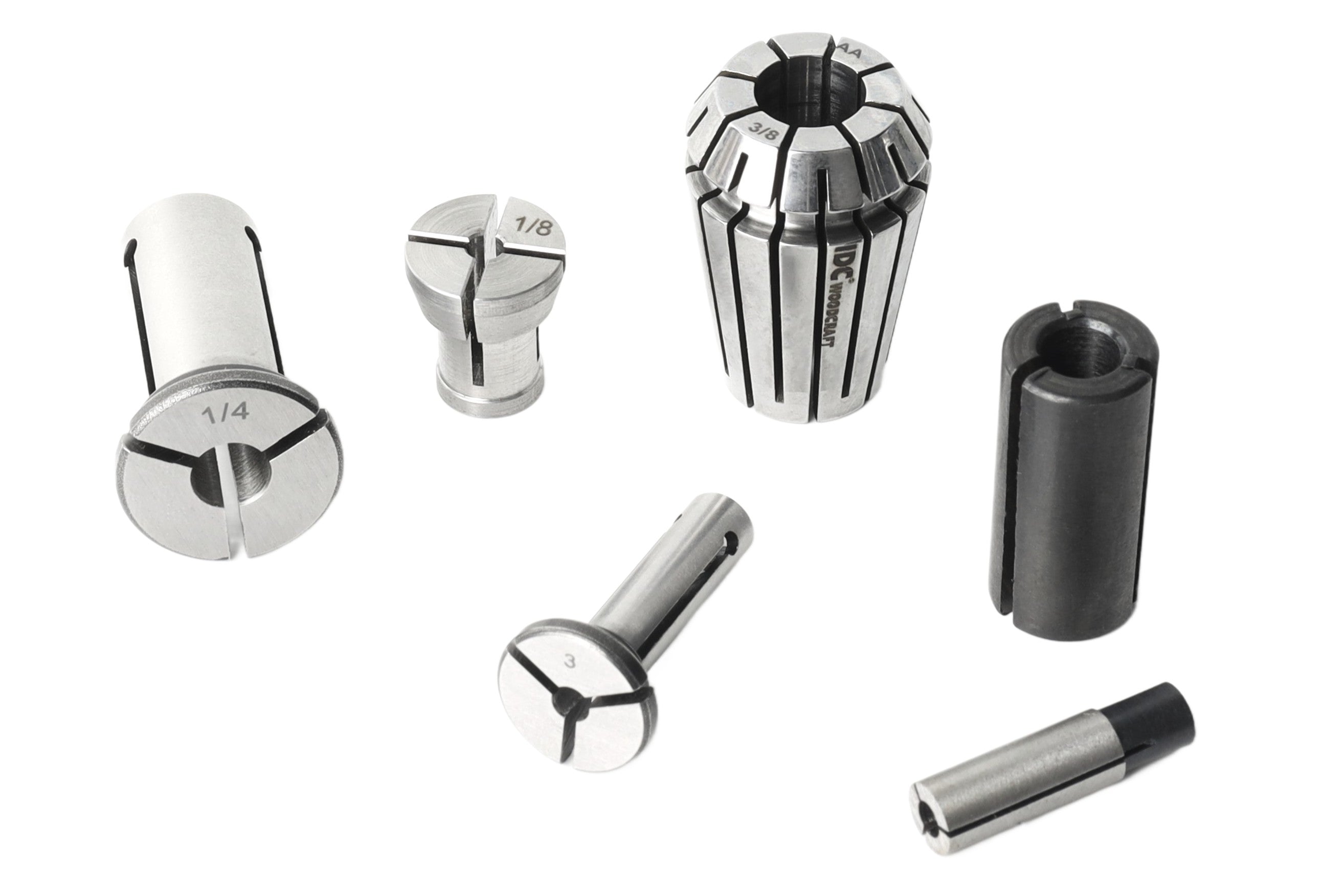
The collet is the tool holder that grips the bit’s shank. A worn or dirty collet can let a bit slip during a cut or spin slightly off center, which shows up as oversized slots and poor finish. Wipe dust out of the collet at each tool change, and replace it once it stops gripping evenly. At IDC Woodcraft, we carry replacement collets for common trim routers.

Toolpath and File Mistakes

Incorrect tool paths are a common issue and a frequent cause of ruined stock. Typical mistakes include selecting a different bit in the software than the one in the collet, setting the job in inches when the file was drawn in millimeters, and leaving too little material under a deep cut. Each one can lead to dimensional inaccuracy or a cut through the back of the board.


Most of these show up before the bit touches wood if you preview the toolpath and run the outline or an air cut first. After the job, measure the part with digital calipers. If every part comes out a little off in the same direction, the problem is likely in the file or tool settings. If the error changes with each part, look at the machine.

Machine Problems and Error Messages 

Excessive Vibration and Loose Components 

Loose components are a frequent root cause of chatter and uneven cuts. Check the wheels or bearings on each axis, belt tension if your machine uses belts, and the set screw on each motor coupler. On many hobby machines, those couplers connect the stepper motors to the lead screws or ball screws, and a loose set screw can let the motor turn without moving the axis the full distance.

Lost Position on the Y Axis or Z Axis 

If a carve slowly shifts or steps out of alignment on the Y axis or Z axis, the machine is likely losing steps. A loose coupler is a common failure point, and other common causes include a feed rate set too high for the machine, binding in the motion system, or a weak power supply. Lower the feed rate, tighten the couplers, and check that nothing drags when you move each axis by hand with the power off.

Alarms and Error Messages

An error message in your CNC control software often points straight to the problem. On GRBL-based machines, these come up most often.

Alarm or Error What It Usually Means First Fix
Hard limit (Alarm 1) A limit switch triggered during a move Clear the alarm, check the switch, and re-home
Soft limit (Alarm 2) The toolpath goes past the machine’s travel Move the job or zero inside the working area
Homing fail (Alarm 9) The machine couldn’t find a limit switch Check the switch or inductive switch wiring
Error 22 Feed rate is undefined Reset jog presets or check the G-code


A soft limit alarm is the software version of a soft overtravel alarm, and it stops the move before the machine hits its physical end. Sienci Labs keeps a full list of GRBL alarm and error codes with what each one means. In gSender, you can read the alarm and unlock the machine right from the main screen.


Alt image

Regular Maintenance Tips

Like any CNC machine tool, a router stays accurate longer with regular maintenance, which catches many CNC machine issues before they ruin a project. A short list of maintenance tasks covers most of it.

  • After each job: Vacuum chips off the rails, screws, and spoilboard
  • Each tool change: Wipe out the collet and check the bit for wear
  • Weekly or every few projects: Check for loose components, coupler set screws, and belt tension
  • Every few months: Recheck tram and resurface the spoilboard

Ambient temperature matters too. Wood can move with heat and humidity between cutting sessions, and electronics in a hot, dusty shop may run warmer than they should. In the manufacturing industry, shops rely on operator training and written best practices so all machine operators follow the same steps. In a home shop, proper training can be as simple as keeping your own short checklist.

Fix CNC Mistakes With IDC Woodcraft

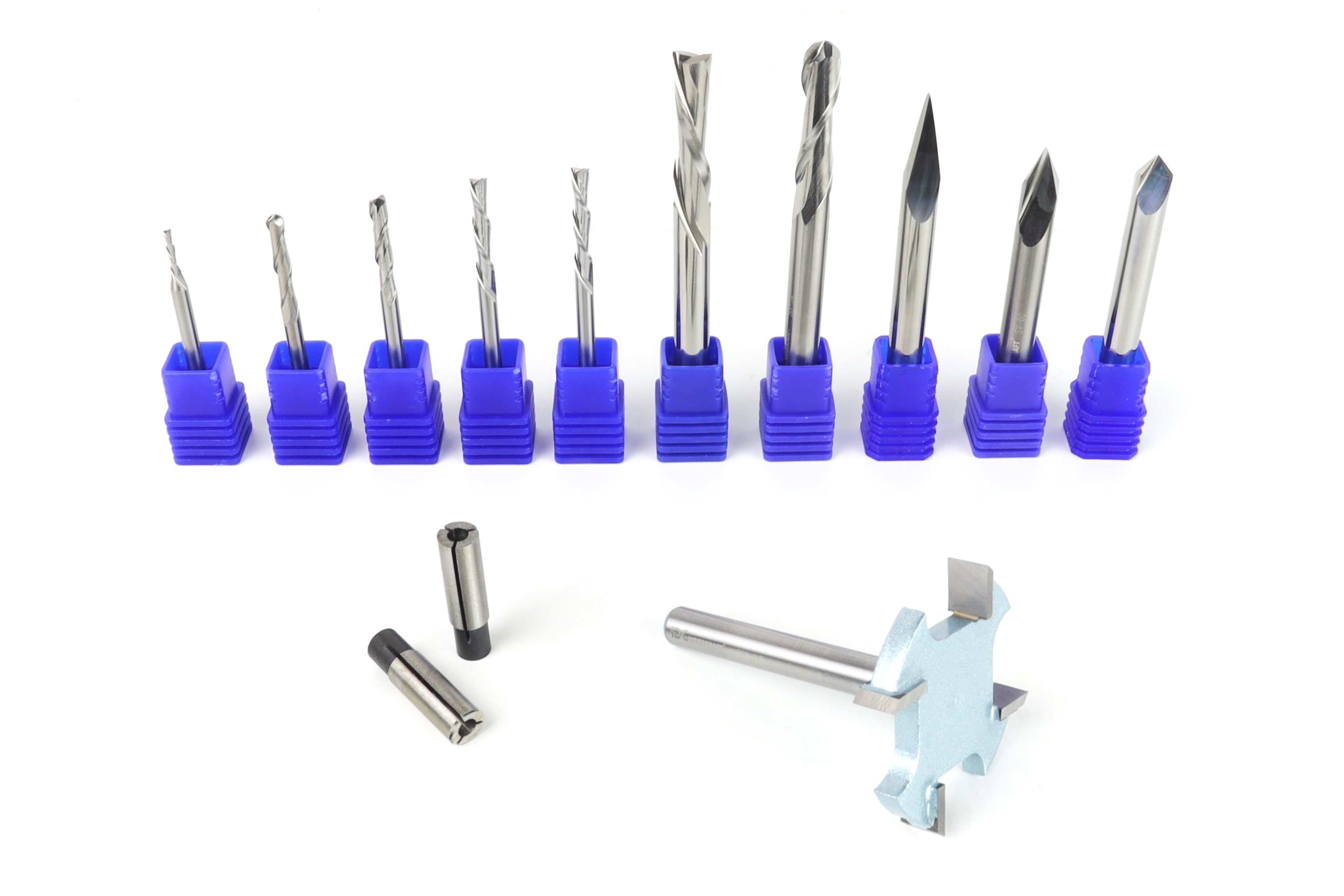
IDC Woodcraft carries the tools and bits behind many of the fixes above. Square up your router with the tram bar, and swap out worn bits with a beginner starter set of USA-made solid carbide bits, which are covered by a 90-day guarantee if one breaks. For help along the way, IDC’s beginner learning center and video center walk through setup, bit choice, and common fixes on a machine like yours.

Frequently Asked Questions

Why does my CNC router leave rough edges? +

A CNC router usually leaves rough edges because of a dull tool, the wrong bit for the material, or a feed rate and spindle speed that don’t match. Try a fresh bit first, then check your chip load. If the roughness is only on the top face, a downcut or compression bit may fix it.

How do I know when a CNC bit is dull? +

A CNC bit is likely dull when it starts burning wood, leaving fuzz, or cutting louder than usual at the same settings. A dull tool also tends to need more force, which can lead to tool breakage. Tool life varies by material, so watch the cut quality instead of counting hours.

What causes a soft limit alarm on a CNC router? +

A soft limit alarm on a CNC router means the toolpath asked the machine to move past its set travel. It’s often caused by a zero point too close to the edge of the working area or a job larger than the machine can reach. Move your zero or resize the job, then clear the alarm.

Why are my CNC cuts the wrong size? +

CNC cuts usually come out the wrong size because of a tool mismatch in the software, a slipping collet, or loose components on the machine. If the error is the same on every part, check the file and tool settings. If it changes with each part, check the set screws, belts, and ball screws or lead screws.

How often should I do maintenance on my CNC machine? +

How often you do maintenance on a CNC machine depends on how much you use it, but a quick clean after each job is a good habit. Check for loose components every few projects, and recheck tram every few months. Regular maintenance like this prevents many common problems.