Free Shipping for CNC Bit orders over $160

Shop

Shop By Project

Shop By Type

Starter Sets

Starter Sets

Inlay

Inlay

3D Carving

3D Carving

Acrylic

Acrylic

Engraving

Engraving

Bowl And Tray

Bowl And Tray

Digital Files

Digital Files

Slotting

Slotting

Rounding

Rounding

V Grooving

V Grooving

Surfacing

Surfacing

Starter Sets

Starter Sets

Bit Bundles

Bit Bundles

Ball Nose

Ball Nose

Compression

Compression

Downcut

Downcut

Drills

Drills

Engraving

Engraving

Extended Cut

Extended Cut

Roughing

Roughing

Rounding

Rounding

Slotting

Slotting

Straight Cut

Straight Cut

Surfacing

Surfacing

Upcut

Upcut

V Grooving

V Grooving

Jenny Bits

Jenny Bits

Collets

Collets

Accessories

Accessories

CNC Machines

CNC Machines

Vacuum Tables

Vacuum Tables

Spindles

Spindles

Software

Software

Digital Files

Digital Files

Merch

Merch

Closeout

Closeout

CNC Resources

Database Downloads

About

Contact Us

Get A Gift Card

Shop

Shop By Project

Shop By Type

Starter Sets

Starter Sets

Inlay

Inlay

3D Carving

3D Carving

Acrylic

Acrylic

Engraving

Engraving

Bowl And Tray

Bowl And Tray

Digital Files

Digital Files

Slotting

Slotting

Rounding

Rounding

V Grooving

V Grooving

Surfacing

Surfacing

Starter Sets

Starter Sets

Bit Bundles

Bit Bundles

Ball Nose

Ball Nose

Compression

Compression

Downcut

Downcut

Drills

Drills

Engraving

Engraving

Extended Cut

Extended Cut

Roughing

Roughing

Rounding

Rounding

Slotting

Slotting

Straight Cut

Straight Cut

Surfacing

Surfacing

Upcut

Upcut

V Grooving

V Grooving

Jenny Bits

Jenny Bits

Collets

Collets

Accessories

Accessories

CNC Machines

CNC Machines

Vacuum Tables

Vacuum Tables

Spindles

Spindles

Software

Software

Digital Files

Digital Files

Merch

Merch

Closeout

Closeout

CNC Resources

Database Downloads

About

Contact Us

Get A Gift Card

gSender CNC Setup and Control Guide for Beginners


The first time you open gSender, there's a lot to take in. There are jog buttons, number fields, a big black preview window, and a row of tabs down the side. It looks complex, but the job it does is simple. gSender takes your project file and tells your CNC router where to move.


This guide walks through gSender one step at a time. It covers connecting your machine, setting it up, jogging, setting zero, probing, and running your first G-code file.


Alt image

What gSender Does

gSender is free software from Sienci Labs that controls GRBL-based machines. In CNC terms, it's a G-code sender.  G-code is the language your machine reads, a list of coordinates and commands that say where to move, how fast to go, and when to cut. It’s essentially a recipe telling the machine what movements and actions to perform. You design a project and build toolpaths in software like Vectric VCarve or Aspire, then export a G-code file. gSender reads that file line by line and sends each command to your machine's CNC controller, which drives the motors.


gSender runs on Windows, macOS, and Linux, so you don't need a new computer to run your machine. For a look at how design and control software fit together, see our guide to what software you need to run a CNC router.

Which Machines Work with gSender

gSender works with machines that run GRBL or grblHAL firmware. Firmware is the small program on the controller board that turns commands into motor movement. GRBL is the original version and often runs on Arduino-based boards. grblHAL is a newer version built for faster boards with more features, like Ethernet and a fourth axis.


Other hobby machines built on GRBL or grblHAL will run gSender too. Onefinity CNC machines are the exception on this list. The Onefinity controller comes with its own control software, so it doesn't use gSender. If you're not sure what firmware your machine's hardware runs, the manufacturer's site or user forum will tell you.

Machine or Controller Controller and Firmware Runs gSender
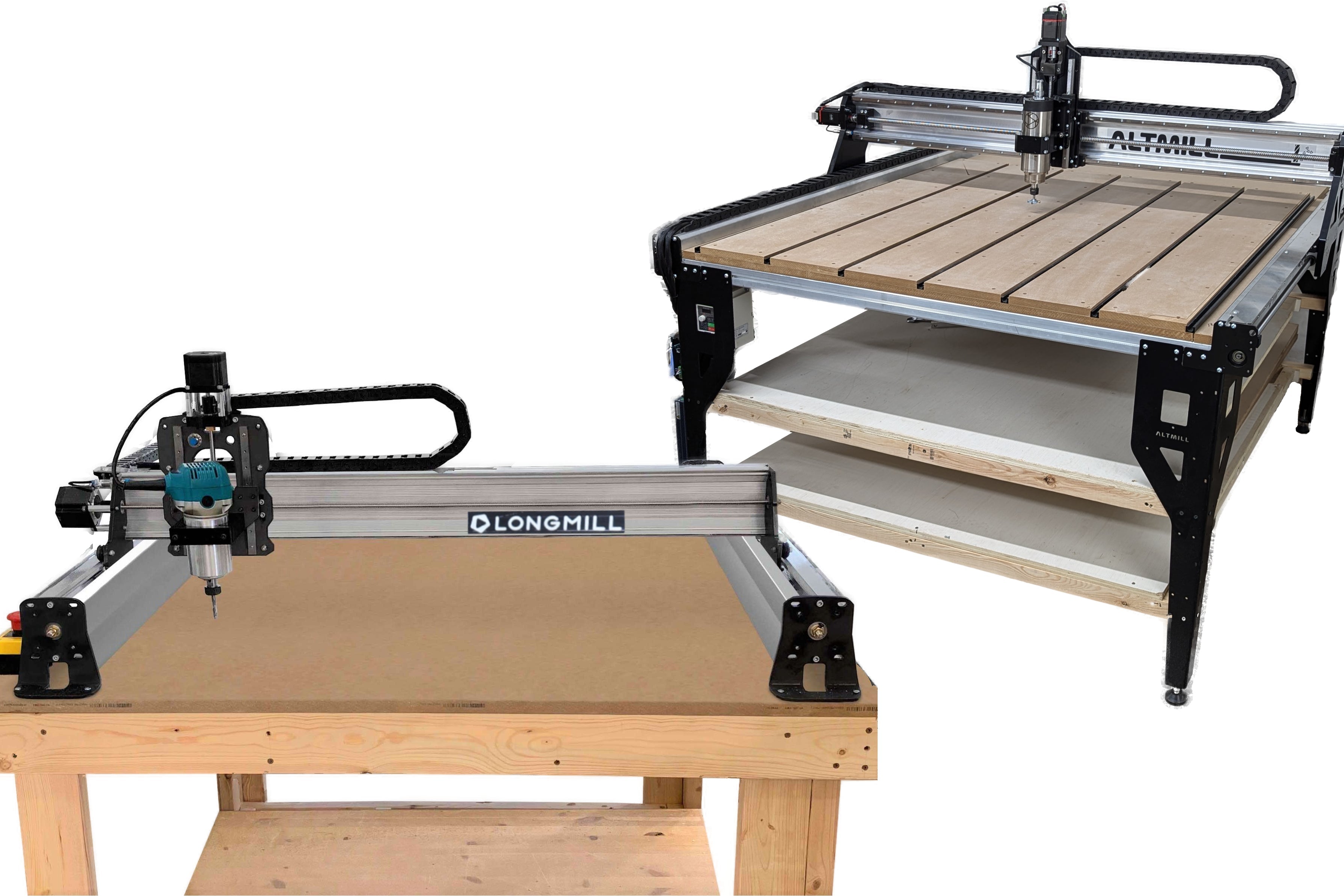
LongMill MK3 30x30, LongMill MK3 48x30, and the LongMill MK3 Beginner's Kit grblHAL Yes
AltMill 2x4, AltMill 4x4, and AltMill 4x8 SuperLongBoard EXT, grblHAL Yes
gControl touchscreen controller Works with any GRBL-based machine Yes, comes preloaded
Onefinity Apprentice and Onefinity Elite RealTime CNC controller No, uses its own software

How to Connect and Set Up gSender

Getting Around the Screen

The large area in the center of the screen is the visualizer, which draws your G-code toolpath as colored lines. Planned cutting moves are blue, the current move is yellow while a job runs, and finished moves turn grey. 


The jog controls and position readouts sit beside it, the start, pause, and stop buttons sit below it, and the Tools and Config tabs run along the side. Sienci Labs updates the layout between releases, so button spots may shift a little if you're on an older version.

Connecting Your Machine

Most machines connect with a USB cable from the controller to a USB port on your computer. grblHAL boards like the SuperLongBoard can also use an Ethernet connection. We recommend you run an Ethernet cable from the board to your computer, set the static IP address listed in Sienci's setup guide, and choose Ethernet in gSender. It's a steadier link in a shop full of electrical noise from routers and dust collectors.


gSender can detect the firmware type on connection and can reconnect on its own if you turn that setting on. When it's connected, the connection area shows your port and a green check. If it says "Connect to CNC" instead, click it, pick your port from the dropdown, and connect by hand.


Some machines start in an alarm state, especially ones with homing switches or proximity sensors and an e-stop. A red status bar doesn't mean anything broke. Click the question mark to read the alarm, then click Unlock. When the status bar turns grey and reads Idle, the machine is ready.

Choosing Your Settings


Before your first job, open Config and set your units to inches or millimeters, whichever you design in. Sienci Labs includes machine presets for the LongMill and AltMill families, but any GRBL-based machine will run fine without one. If you run a VFD spindle, you can also add a spindle speed override slider. If your machine has a laser module, turn on laser mode so gSender handles power correctly.


Important: After any change, click Apply Settings in the lower right corner. The button flashes green when a change is pending, and nothing sticks until you click it.

How to Job, Zero, and Probe Your Machine

Jogging

Jogging means moving the machine by hand to a spot you choose, like the corner of your stock or out of the way after a cut. The jog buttons move X and Y in a cross pattern, and a separate column moves Z up and down. Three presets set how far and how fast each click moves. Precise is for tiny adjustments, Normal is the everyday setting, and Rapid covers long moves across the table.


If your jog presets ever get cleared, every jogging button stops responding and GRBL returns "Error 22," which means the feed rate is undefined. Open Config, find Jogging Presets, and reset them to default. The presets may show in millimeters even if you work in inches. That's just how gSender stores the values.


gSender also supports gamepads, so you can build gamepad profiles and map each button to a jog direction or command. Remote mode adds a web interface, so you can jog from a phone or tablet on the same network instead of walking back to the laptop.
Setting Your XYZ Zero

Zero is the starting point your toolpaths measure from, usually a corner or the center of your stock. If your zero is wrong, the whole cut will land in the wrong place.


To set it by hand, jog the bit over your X and Y start point and click X0 and Y0. Then lower the bit until it just catches a sheet of paper on the surface and click Z0. Our guide to setting a precise zero without a touch probe covers the paper method in detail.


Machines with homing get a few extras. Homing sends the machine to its limit switches so it always knows where it is. After homing, corner selection buttons move the machine quickly to any corner of the work area, and a park button sends it to a saved spot.

Probing With a Touch Probe

A touch probe is faster and more consistent than the paper method. It's a metal plate that sits on your stock. When the bit touches it, the circuit closes, and gSender subtracts the plate thickness to set zero. gSender supports a few probe setups.

  • Z-only plate: sets height when X and Y are already set
  • Standard corner plate: sets X, Y, and Z in one cycle
  • AutoZero plate: works with V-bits and can measure bit diameter on its own

The default probe values match Sienci's plates, so if you use a third-party plate, enter its thickness in Config before your first probe.

How to Run a G-Code File in gSender

Loading and Running the File

A touch probe is faster and more consistent than the paper method. It's a metal plate that sits on your stock. When the bit touches it, the circuit closes, and gSender subtracts the plate thickness to set zero. gSender supports a few probe setups.

  • Z-only plate: sets height when X and Y are already set
  • Standard corner plate: sets X, Y, and Z in one cycle
  • AutoZero plate: works with V-bits and can measure bit diameter on its own

The default probe values match Sienci's plates, so if you use a third-party plate, enter its thickness in Config before your first probe.

Using the Built-In Tools

Here are a few of the main built-in tools you can use for your project:

  • The Tools tab saves you from reaching for external software. 
  • The Surfacing tool writes a flattening program for your spoilboard right in gSender, so pair it with a 1.5" surfacing bit. 
  • XY Squaring checks if your axes are square, and the Firmware tool lets you change GRBL settings without separate Arduino software. 
  • Keyboard Shortcuts lets you assign hotkeys to common actions.

Common Errors and Fixes

Problem What It Means Fix
Error 22 when jogging Jog presets are empty Reset jogging presets to default in Config
Red alarm on startup Machine needs homing or unlocking Read the alarm, then click Unlock or Home
Machine won't connect Wrong port or wrong firmware Pick the right port and match GRBL or grblHAL
Settings won't save Changes not applied Click Apply Settings in the lower right corner

Start Running Jobs With gSender

gSender connects your design work to your machine, and once you've learned to connect, zero, and run a file, you have the whole workflow down. It's free, actively maintained, and backed by a helpful user forum. After a few jobs, the screen that felt like a lot on day one will be second nature.

If you're still getting set up, IDC Woodcraft has what you need in one place. You can download gSender for free, and pick up a beginner starter set of USA-made solid carbide bits for your first projects. For help along the way, the beginner learning center and video center walk through real setups and projects, and the chipload calculator takes the guesswork out of your settings. Visit IDC Woodcraft to get started.